8th grade technology activities

Paper-prototype an app, rebuilt so 8th graders change a design because a stranger got stuck on it, plus five more activities by standard and a free sheet.

Who we are. Mission.io makes Missions: teacher-led, whole-class simulations where students use what they’re learning to work through a real scenario together.

Everything on this page works without us. The two Missions that run at 8th grade are at the end, Cyber Defense Force and Encrypted Escape. (In the first, the crew sorts incoming messages during a planetary firewall update, and every phishing scam it misses is a way in for hackers.)

On this page

What 8th grade technology looks like

Eighth grade technology activities are computer science problems where someone other than the builder has to use the thing, and the class changes it because of what that person did. This page teaches three of the CSTA computer science standards for grades 6 to 8 (level 2), plus online safety.

By 8th grade, technology is often an elective that ends on a project, and a search for technology activities can still mean the computer lab: keyboarding, research, digital citizenship. This page is the computer science half, plus online safety. For the rest, Common Sense Education’s digital citizenship lessons and CS Unplugged are free, and the ISTE Standards for Students (Innovative Designer, Digital Citizen, and five more) name the skills.

Eighth grade is the last year of level 2. By the end of it, students write algorithms as flowcharts or pseudocode (2-AP-10), seek and use feedback from the people a solution is for (2-AP-15), and weigh public against private information (2-IC-23). The band also asks them to break problems into parts, test systematically, split tasks across a timeline, document their programs, and think about accessibility, along with networks, encryption, and data. The codes come from CSTA’s 2017 standards, which Code.org’s lessons cite, and CSTA put out a revised PK-12 set in 2026.

Picture the usual version: the student who draws best makes every screen, the team admires them, and nobody outside the group ever taps one. A design nobody else has tried is a guess with nice handwriting.

Six things a design project needs to count as CS

CSTA writes the room into the standards. Its seven core practices include collaborating around computing and fostering an inclusive computing culture, next to testing and refining what you build (CSTA, 2017). An app tested on a student from another team, while its builders keep their hands in their laps, is that practice at desk scale. The catch is giving each builder a job someone can check.

  1. 1. A real problem with stakes the class can feel.

    “Design an app” can’t fail. “The front office will hand one prototype to a developer who charges by the screen” can.

  2. 2. Apply, don't recall.

    Round two exists because of round one: the team rebuilds from what its first tester did. Skip the test and there’s nothing to revise.

  3. 3. Group goals with individual accountability.

    The one a design project misses: the best artist draws every screen. When the group shared a goal and each student answered for a part, 84% of studies found a positive effect; without both, 17% (Slavin, 1991).

  4. 4. The teacher leads the thinking.

    Three questions at the cards (where did the user pause, which screen could go, what changed because of the user and not your own idea) teach more than a lecture on user experience.

  5. 5. A debrief where the class argues it out.

    The test is the setup. The argument afterward, about what the team cut and whether it would have without a tester, is 2-AP-15 put as a question.

  6. 6. A way to see who did what.

    The Observer’s notes show who caught the pause, and the revision box shows who turned it into a fix. Without them, you’re grading the drawings.

Nobody helps the tester. Every screen has to make sense alone.

The sheet in the next section has the screen-flow map, the front-office task card, the Observer’s log, and the tally. Get the sheet →

Paper app prototype, rebuilt for 8th grade (2-AP-15)

Teams sketch an app’s screens on index cards, a “user” taps the paper while a teammate swaps screens, and the team revises from wherever the user got stuck. Code.org’s CS Discoveries runs the middle school version, Build a Paper Prototype, and PwC’s schools toolkit publishes App Development Unplugged: User Interfaces with a facilitator guide. The way it usually runs: one artist, a share-out, and a design no stranger ever tries. Nothing gets coded, so this page claims no programming standard for it. The version below hits all six.

Time
55 minutes. The 45-minute cut: four screens at most, a 60-second test, and one revision round.
Groups
Fours. With 28 students, seven groups of four exactly.
Supplies
A pack of index cards per team, pencils, a timer per team, and the map sheet. About $4.
Standards
2-AP-15 (seek and use feedback from users to refine a solution), with 2-AP-10 (flowcharts) for the screen-flow map. ISTE 1.4.c (develop, test, and refine prototypes in a cyclical design process) is the ISTE cousin.
  1. Teach first, 10 minutesApply

    Hand a volunteer three index cards for a lunch-ordering app you drew badly on purpose: no back button, a hidden submit. Ask them to order a sandwich by tapping, and let the class watch them get stuck. Name the two ideas: a prototype exists to find what users get stuck on before anything is built, and a screen-flow map (a flowchart of screens) shows the whole app at once. Then the test rule: the user talks, and the team doesn’t help.

  2. The problemStakes

    The front office wants a one-task app for visitors: sign in, say who you’re visiting, get a badge. It will hand one team’s prototype to the district developer, who charges by the screen. Criteria: a first-time user finishes the task in under 90 seconds without help, in five screens or fewer, with one accessibility choice (large text, a clear way back) named and shown. A prototype that strands its tester is cut. One with eight screens costs too much.

  3. Four roles, and nobody helps the userAccountability

    Each student signs a role box on the sheet.

    • Flow Mapper

      Draws the screen-flow map, the only pencil on it. Every arrow is a tap.

    • Screen Builder

      Draws each screen on an index card from the map. Nothing goes on a card that isn't on the map.

    • Computer

      During the test, swaps cards in response to the user's taps, exactly as the map says, and says nothing.

    • Observer

      Times the test, writes down every place the user paused or asked "where do I...", and reads the notes back at the revision.

  4. You lead the thinkingTeacher leads

    Three questions, at the cards: Where did your user pause, and what on the screen caused it? Which screen could go away? What did you change because of what the user did, not what you thought? During the test, you keep the team’s rule too. Nobody helps the user, you included.

  5. Two rounds, so the feedback has to landApply

    Round one: build, then test with a user from another team. Round two: revise from the Observer’s notes and test with a different user. The Flow Mapper and the Computer swap between rounds. A team that changed nothing in round two didn’t use its test.

  6. The debrief, 10 minutesDebrief

    Two screen-flow maps under the document camera. Which prototypes got a stranger through in under 90 seconds, and what did they share? What did your team cut after the test, and would you have cut it without one? Who in your group wrote down the pause that led to the biggest fix?

  7. See who did whatSee who did what

    The observation sheet, four behaviors per student: built from the map instead of improvising, observed and recorded a user problem, proposed a revision tied to something the user did, disagreed with a reason. Each test is a quiet two minutes per team, so that’s when to look; a tally catches about half the room.

(If the Computer starts eyeing the submit button, the Observer writes it down. The Computer knows where everything is and isn’t allowed to say.)

Keep the revision boxes. “We changed ___ because the user ___” is 2-AP-15 in the students’ own handwriting.

The paper app prototype, free

Emailed now, ready to copy: the teacher page, four role cards, the screen-flow map, the front office’s request with the user’s task cards, the Observer’s log for times, pauses, and quotes, the revision box, and the four-behavior tally.

It’s on its way.

Check your inbox for the paper app prototype.

Email me the sheet. It comes as a PDF, ready to print. Unsubscribe anytime.

Five more 8th grade technology activities, by standard

Five that 8th grade teachers already run, how each one usually goes, and what it needs to count as computer science, in CSTA’s order.

Networks, programming, impacts, research

2. Caesar and keyword ciphers (2-NI-06)

Needs a paper alphabet strip or cipher wheel. Pairs.

Students encode a message with a letter shift, then with a keyword alphabet, and see which one holds when a classmate tries to crack it. Most 8th graders have met ciphers before, so it works as a quick warmup on keys. As usually run, though, nobody attacks the message, so it never shows why the keyword holds.

The fix

  1. Give each pair one round against an Interceptor from another pair, who tries every shift on the Caesar message.
  2. Ask why the keyword cipher held, in key-space words, and move on.

See the ciphers on the 6th grade page →

3. The human sorting network (2-AP-10)

Needs chalk or masking tape and number cards. Groups of six.

Students holding number cards walk a network chalked on the floor, compare at every node (smaller left, larger right), and come out sorted. In 8th grade it’s a quick review. As usually run, though, it’s a race, and nobody checks whether the network sorts every starting order.

The fix

  1. Add a Verifier who records the output and logs the node where a walker went the wrong way.
  2. Run it on reverse order and on one order the group picks because it looks hard.

See the sorting network on the 7th grade page →

4. A website or Scratch game (2-AP-15)

Needs a device per student, a free [Scratch](https://scratch.mit.edu/) account or a site builder, several weeks.

Over several weeks, students build a website or a Scratch game on screen. The programming gets real use. As usually run, though, the project goes straight to the screen, one student ends up building most of it, and nobody tests it on a real user before it’s called done.

The fix

  1. Start with a paper prototype, one page or screen per sheet, before anyone opens the builder.
  2. Give each student one page of the site or one screen of the game to own, with their name on it.
  3. Before anyone calls it done, hand it to a user from outside the team and note where they get stuck.

The paper prototype at the top of this page is where it starts.

5. A digital footprint audit (2-IC-23)

Needs a fictional profile to review. Pairs.

Students review a made-up profile and decide what should be private, and what keeping it private would cost, like a team photo the coach wants to post. The thinking is real, and you lead it. As usually run, though, it’s a worksheet each, and nothing shows who weighed the tradeoff.

The fix

  1. Pair students as an Auditor, who flags what’s public, and an Advocate, who argues for what the profile’s owner would want.
  2. For every flagged item, the pair writes one decision and one reason, with both initials.
  3. Use it as the warmup for Cyber Defense Force, which starts from knowing what personal information is.

No page for this one; the Auditor and the Advocate are the fix.

6. Evaluate a source (ISTE 1.3.b)

Needs three web pages to rate. Individual, usually.

Students rate three web pages for accuracy, bias, and origin: who wrote it, what they want you to think, and whether the facts hold up somewhere else. The thinking is real, and you lead it. As usually run, though, it’s a worksheet each, and a single rating can’t show who reasoned it out.

The fix

  1. Pair students, and have each partner rate all three pages alone first.
  2. Put the two ratings side by side, and have the pair argue every difference until they agree, or write down why they don’t.

No page for this one; the argument between the two ratings is the lesson.

  • Our part · We make Missions

    Past the prototype, a place to use it

    Plenty of teachers rebuild these by hand every unit, and it works. A Mission is a teacher-led, whole-class simulation built from a unit you teach. No Mission at 8th grade teaches design or programming. When the unit turns to scams and privacy, run the footprint audit in pairs, then Cyber Defense Force.

    You're at the helm, not on the hook.

    Cyber Defense Force: spotting the fake, as a Mission

    Cyber Defense Force · Grades 4 to 12 · About 37 minutes · One device per student, plus your projector · Free with a teacher account

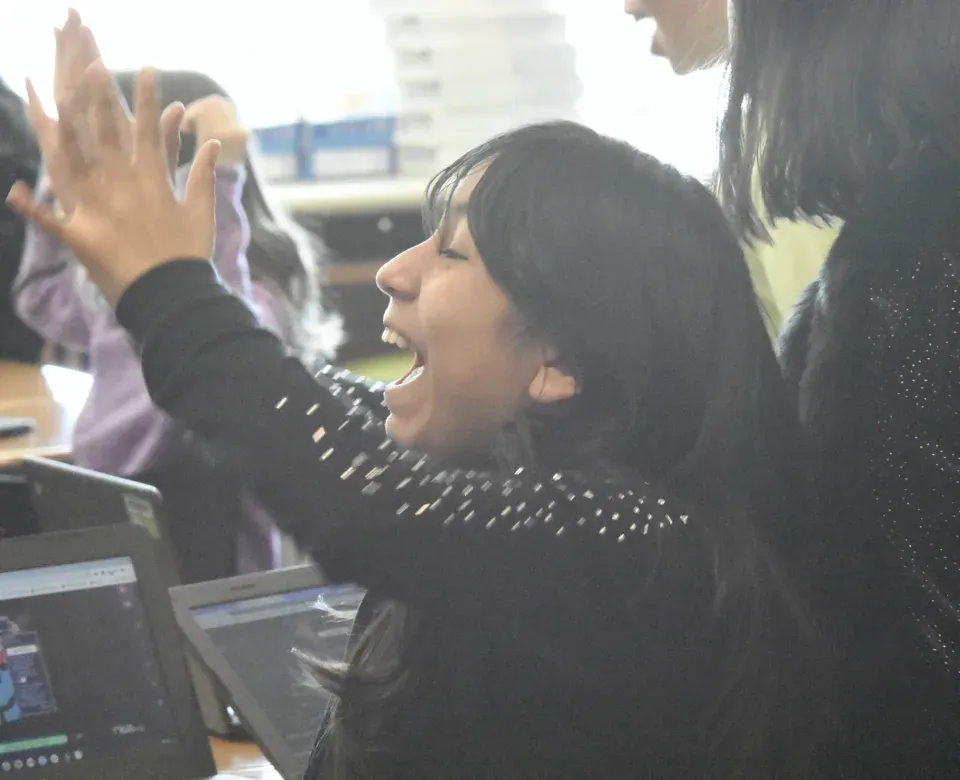
    A student throws both hands up and cheers at her laptop.
    A student cheering at her laptop.

    The crew learns that a planetary firewall update will leave the defense system open to hackers for a while. Before it starts, they take a crash course in how phishing works: fraudulent emails, suspicious links, fake websites. Then the incoming messages start, and the crew decides, one at a time, which are safe and which are threats, using the S.T.O.P. method. Whether the system holds depends on how well they spot the scams.

    The story plays on your projector. The work happens at seven stations (Command, Engineering, Medical, Security, Science, I.T., Operations), with every student assigned to a team and working on their own screen. Our technology connects the class, runs each station, and keeps the story moving. You move between teams asking how they knew that link was fake.

    The vocabulary is the unit’s: phishing, hacker, firewall, personal information, scam. The footprint audit makes a good first step, and you can say why out loud: the Mission expects the class to know what personal information is, and the audit has them sort it out on a made-up profile first. The lesson prepares them. The Mission is what they’re preparing for.

    “What I love most is that it’s low-prep but high-impact.”

    Ginger Marsh, Middle school teacher, Cedar Middle School

    Will it work in my room?

    Students join with a class code: no student accounts, no student email, no passwords. Chromebooks, laptops, or tablets, plus your projector. Free for teachers, no credit card. Student data is covered by COPPA and FERPA, and we signed the Student Privacy Pledge. At about 37 minutes, Cyber Defense Force fits a 45-minute period with time for the debrief, and Encrypted Escape runs about 30.

    START FREE →

    Communication first, then Cyber Defense Force

    What the report shows

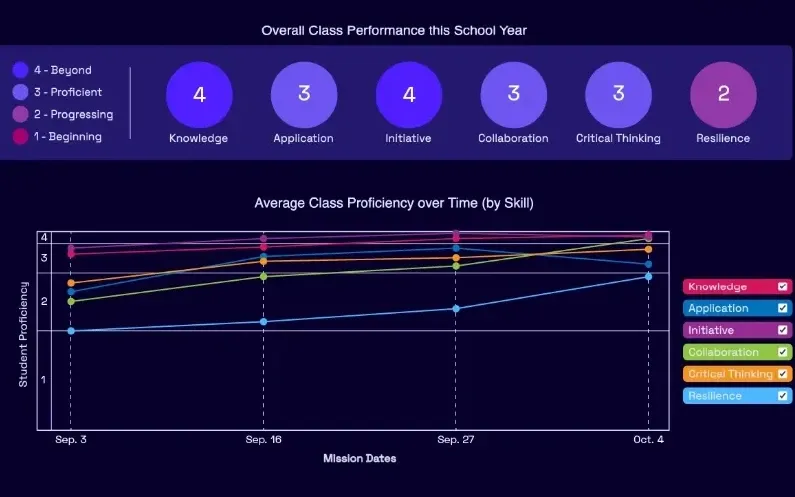
    A Mission.io class report: the class score in each of six skills, from knowledge and application to collaboration, critical thinking, and resilience, with the class chart across the year below.
    A class report from a real Mission: the class score in each of six skills, then each skill across the year.

    Every Mission produces a report for every student, built from what that student did across the whole Mission, on the skills the Mission captured. The six it can capture are Knowledge, Application, Initiative, Collaboration, Critical Thinking, and Resilience. The first two are what a test already sees. The other four are the human skills every school promises. The test shows what they know. The report shows the rest. SEE THE EVIDENCE →

    You taught it. Now find out who can use it.

    Who's behind it

    Mission.io is a research and design organization with one job: make collaborative, active learning something a teacher can run every unit instead of once a semester, and put a report in your hands when it’s over. Over a million students have run a Mission. The research behind them is funded by the National Science Foundation and the U.S. Department of Education’s Institute of Education Sciences, and Mission.io meets ESSA Level II standards, as validated by Instructure.

    Grades 6 to 8 CSTA standards this page teaches

    Three of the 23 CSTA computer science standards for grades 6 to 8, each next to the activity on this page that teaches it. The codes link to CSTA’s table of the 2017 standards.

    The three standards this page teaches

    Flowcharts, user feedback, and privacy tradeoffs.

    The grades 6 to 8 CSTA standards this page teaches, with the activity for each.
    The standardOn this page
    2-AP-10 Use flowcharts and/or pseudocode to address complex problems as algorithms.On this page: 1. The prototype’s screen-flow map
    2-AP-15 Seek and incorporate feedback from team members and users to refine a solution that meets user needs.On this page: 1. The paper prototype’s user tests and 4. A website or Scratch game
    2-IC-23 Describe tradeoffs between allowing information to be public and keeping information private and secure.On this page: 5. A digital footprint audit

    The Missions for this grade

    One Mission here is on phishing, and the other is on the solar system. None lists a CSTA code.

    The Missions that run at 8th grade, with the codes each record lists.
    NumberMissionTopic (code)Minutes
    7Cyber Defense ForceDefend a planetary system from hacker attacks by detecting phishing scams37
    8Encrypted EscapeUse the properties and scale of celestial bodies to open Dr. Zyla’s encrypted file (NGSS MS-ESS1-3)30
    START FREEMISSION BRIEF →

    Free teacher account, no card. The Communication Mission, marked Start here in your library, comes first, then Cyber Defense Force, each after its 5-minute Teacher Preview.

    Also at this grade

    The 8th grade STEM activities page lists the grade’s Missions in every subject and rebuilds the water bottle rocket; the 8th grade science activities page lists Encrypted Escape on its NGSS row, MS-ESS1-3; the 8th grade engineering activities page rebuilds the mousetrap car; the 8th grade math activities page rebuilds Barbie bungee; and the 7th grade technology activities page rebuilds the human sorting network.

Questions 8th grade technology teachers ask

What technology skills should an 8th grader have?

The three CSTA skills on this page are mapping a design as a flowchart, changing it because of what a real user did, and deciding what stays private online. The ISTE Standards for Students name seven broader ones: Empowered Learner, Digital Citizen, Knowledge Constructor, Innovative Designer, Computational Thinker, Creative Communicator, and Global Collaborator. For keyboarding and research, Common Sense Education and CS Unplugged are free.

Which 8th grade computer science standards does this page teach?

Three of the CSTA standards for grades 6 to 8 (level 2), each with its activity: 2-AP-10 flowcharts, 2-AP-15 feedback from users, and 2-IC-23 public and private information. They’re CSTA’s 2017 standards.

Is there a Mission for app design in 8th grade?

No. Two Missions run at 8th grade, and neither teaches design or programming: Cyber Defense Force is on spotting phishing, and Encrypted Escape is a solar system Mission whose record lists NGSS MS-ESS1-3, a science standard. The paper prototype and the website project carry the design standards.

What if my 8th graders have never built an app?

The paper prototype assumes they haven’t. Nothing is coded: the screens are index cards, the computer is a teammate swapping them, and the only thing the tester has to do is tap. It runs about 55 minutes, and the 45-minute cut caps the app at four screens, the test at 60 seconds, and the revisions at one round.

How do I grade an 8th grade design project?

Grade the revision, not the artwork. The Observer’s log and the revision box are one grade: did the team change something because of what a user did, and can it say what? The four-behavior tally over two or three activities is the other. A team that cut two screens because its tester froze on both is doing what 2-AP-15 describes.

The developer charges by the screen

Day one, the paper prototype with the sheet and a pack of index cards. When the unit turns to scams and privacy, the footprint audit in pairs, then Cyber Defense Force after a 5-minute Teacher Preview. Both free.