
Schoology integration
Install the Mission.io app from the Schoology App Center. It takes a few clicks and works across your whole organization.
Before you start
You’ll need Schoology admin access to add an app to your organization.
DOWNLOAD THE PDF → (PDF, 112 KB)Not the admin? Send them this page.
On this page
Step 1: Find the app
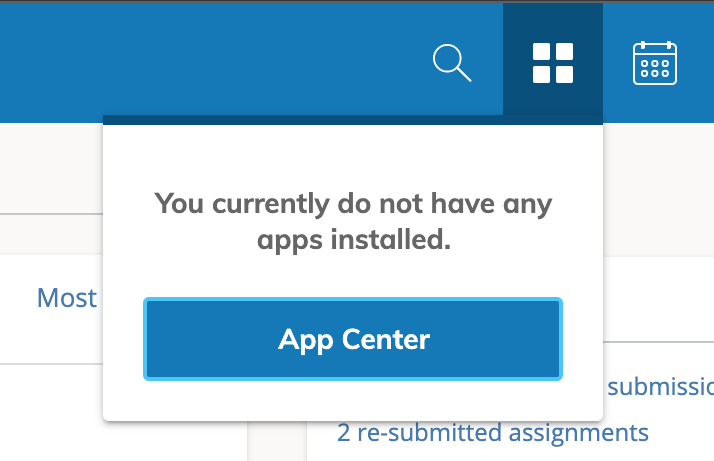
Log in to your Schoology account and locate the App Center icon at the top of the menu bar. Search for the Mission.io app, then select it. If you cannot find the App Center from your Schoology account, then click on the following link, which will take you straight to it.
Open full size Step 2: Install the LTI 1.3 app
Click “Install LTI 1.3 App”, click “I Agree”, then Continue.
Step 3: Add to your organization
Select the “Add to Organization” option in the pop-up window that appears.
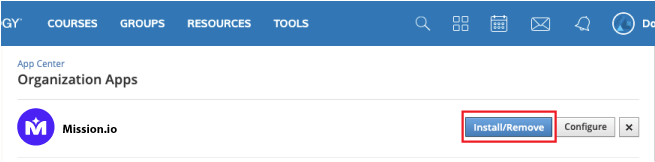
Step 4: Select Install/Remove
Once you have added the Mission.io app to your organization, continue the process by selecting Install/Remove.
Open full size Step 5: Choose where
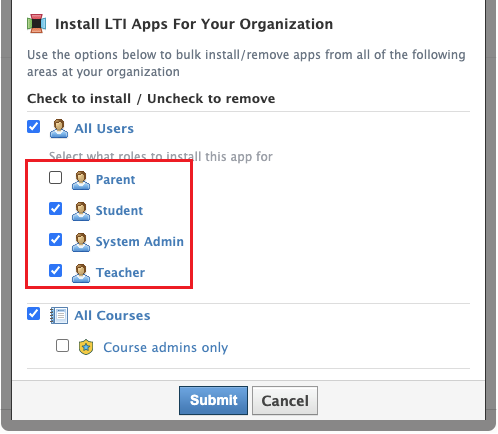
Select where you would like to install the Mission.io app.
Step 6: Pick users and courses
Make sure to select all users (except parents) and all courses, then click Submit.
Open full size Step 7: Find it in your courses
After successful installation, go to your Courses, and locate the Mission.io app at the left side of the course navigation.
Mission.io now shows in each course’s left-hand navigation. Stuck? support@mission.io
Setting it up for a whole district? We’ll do it with you.