
Canvas integration
Your Canvas admin sets it up once. Then teachers bring their Canvas classes straight into Mission.io.
Before you start
You’ll need Canvas administrator access. Teachers can’t install this themselves.
DOWNLOAD THE PDF → (PDF, 207 KB)Not the admin? Send them this page.
On this page
Step 1: Add a developer key
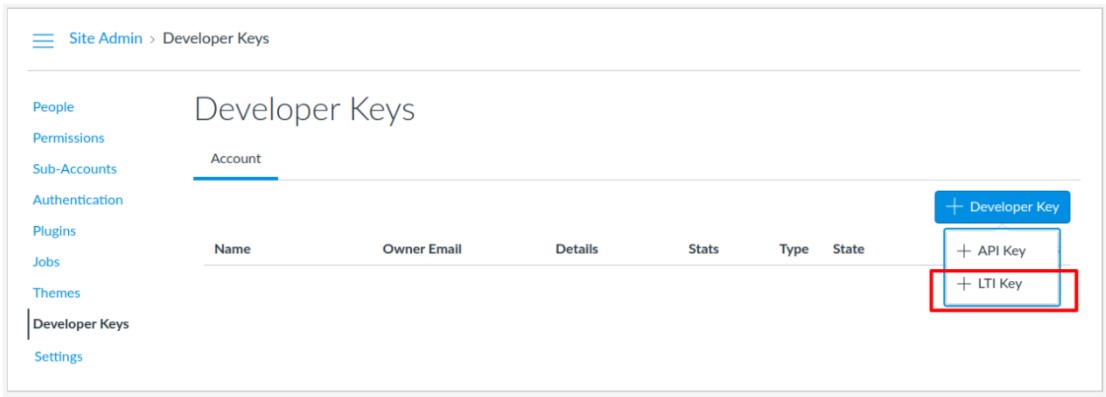
Log in to your Canvas account with administrator privileges. Navigate to the Admin section. Within the Admin section, find “Site Admin”. Click on “Developer Keys”. Click the button “+ Developer Key”. From the dropdown menu, choose “+ LTI Key”.
Open full size Step 2: Choose Enter URL
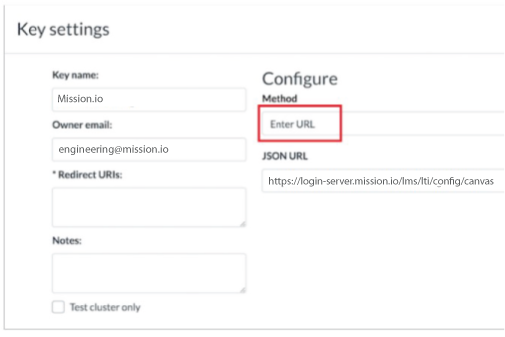
A menu will appear with several required fields. Choose Methods, choose “Enter URL”.
Step 3: Fill in the key
Enter the following information into the required fields.
- Key Name
- Mission.io
- Owner Email
- engineering@mission.io
- JSON URL
- https:/
/ login-server.mission.io/ lms/ lti/ config/ canvas - Redirect URIs
- This section will be populated automatically.
- Notes (optional)
- Any notes you may want to enter here.
Open full size Step 4: Set it to ON
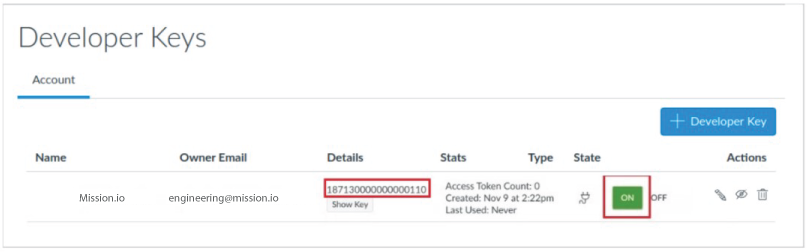
Make sure the state of the tool is set to ON.
Step 5: Copy the Client ID
Copy the Client ID value in the Details column of your new key for the next steps.
Open full size Step 6: Add the app
Navigate to Settings > Apps > View App Configurations > “+ App”.
- Choose Configuration Type, By Client ID.
- Enter the Client ID of the Developer Key (from the previous step).
- Click Submit, then Install.
Step 7: Last step: send us two things.
Email your Client ID and your Canvas URL (like yourschool.instructure.com) to support@mission.io. We’ll finish the connection on our side and let you know when it’s live.
Setting it up for a whole district? We’ll do it with you.